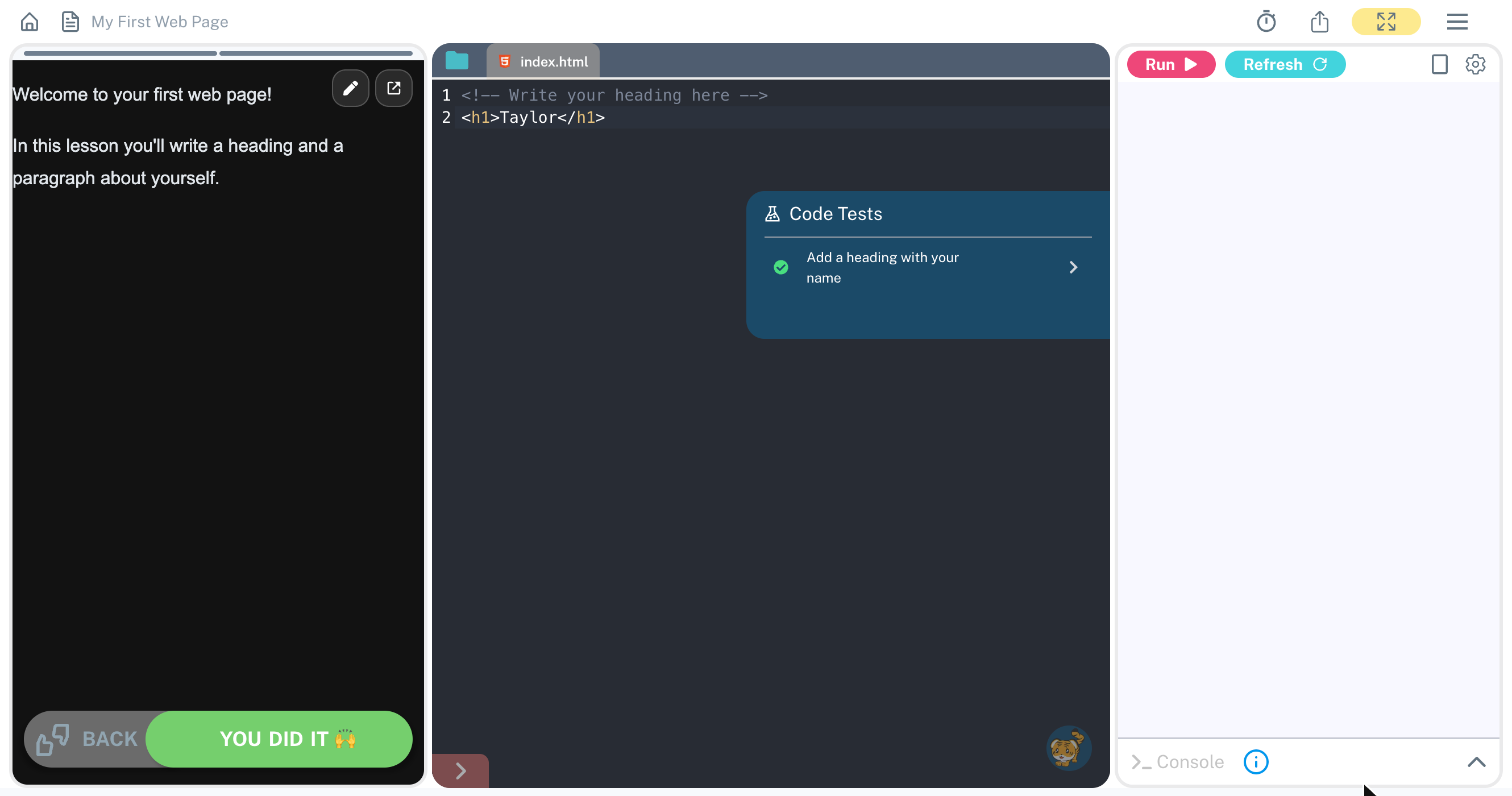
Add tests to a coding slide
Give a slide a starting file and a test, so CodeTribe checks your students' code and lets them go on when it passes.
A test checks a student's code on one slide. Until the slide's tests pass, its button says LET’S GET CODING. When they pass, it changes to YOU DID IT. You add tests in the lesson editor: see Create a lesson to open it.
Give the slide a starting file
Students write their code in the slide's files. A new slide has none, so add one first.
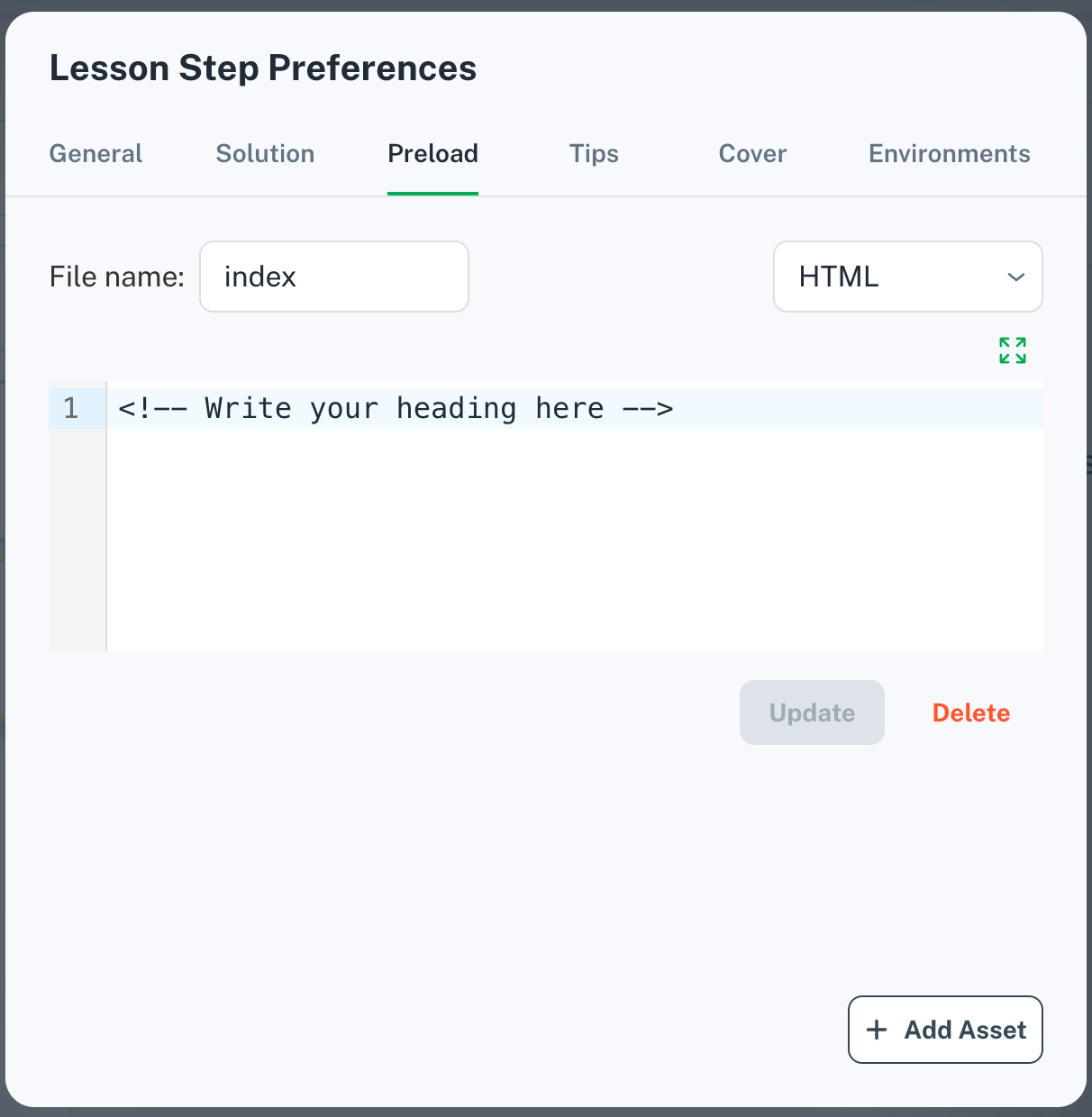
- On the slide's card, select the ⚙ icon. Lesson Step Preferences opens.
- Select the Preload tab, then Add Asset. CodeTribe adds an empty HTML file.
- Check the File name and the file type. In the box below them, type the code students start with, such as a comment that tells them what to do.
- Select Update.
Write a test
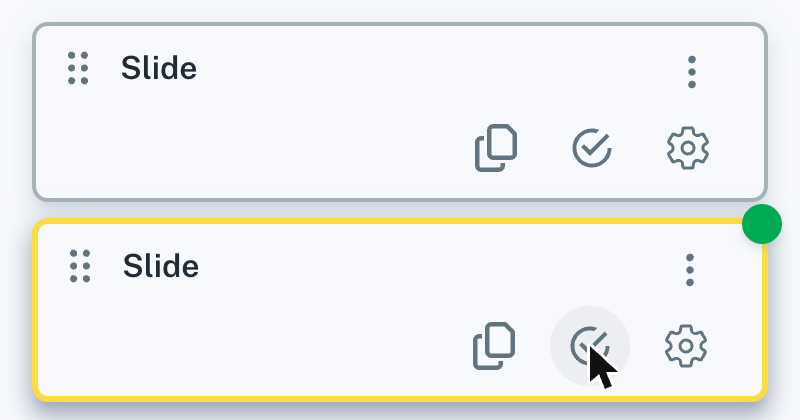
- On the slide's card, select the ✓ icon. Tests opens.
- Select Add Test. Create Test opens.
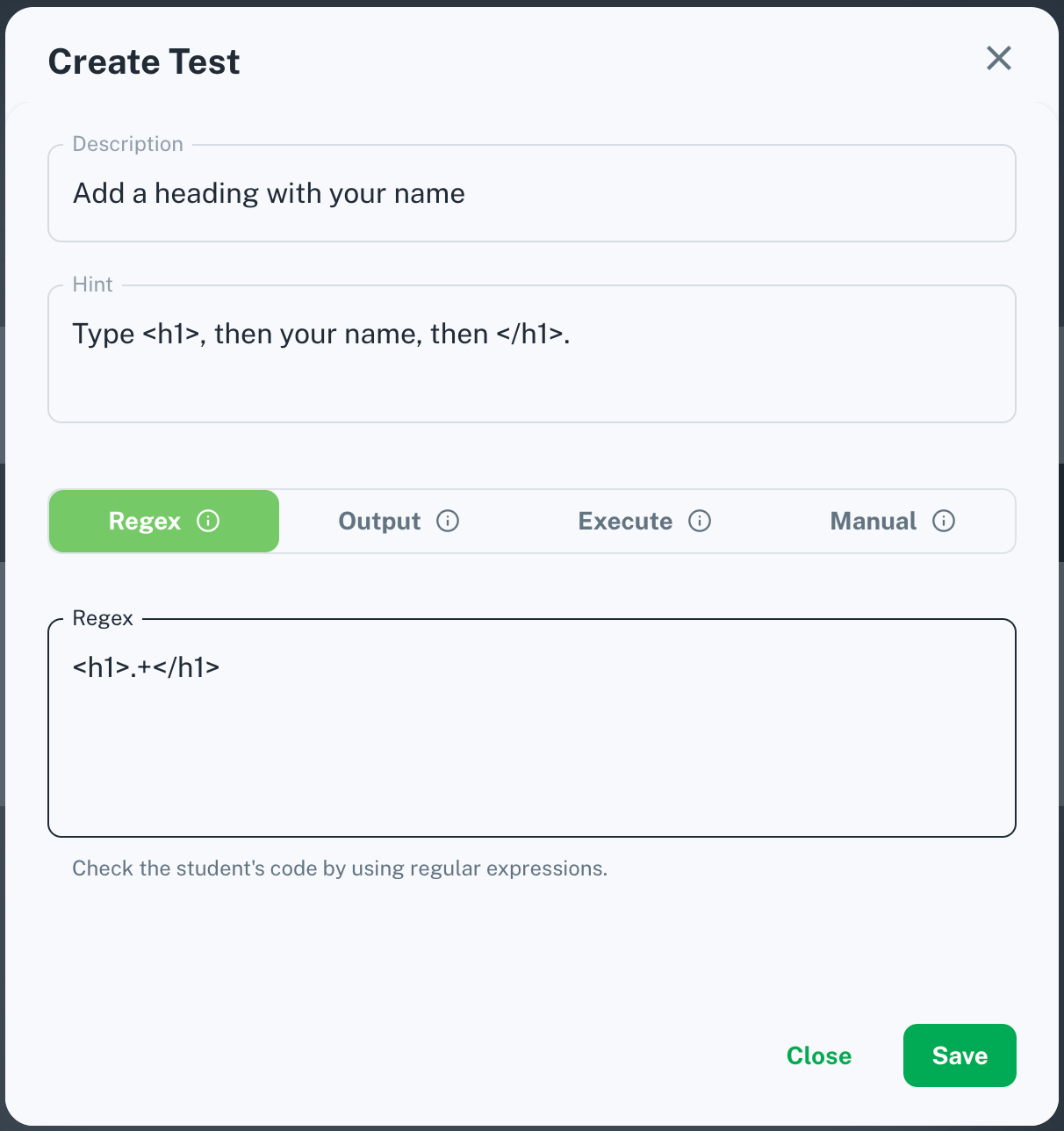
- In Description, write what the student has to do. Students see it in their Code Tests list.
- Optionally, type a Hint for students who get stuck. They see it when they open the test in Code Tests.
- Pick how CodeTribe checks the code:
- Regex looks for a pattern (a regular expression) in the student's code. For example,
<h1>.+</h1>passes when the code has a heading with some text in it. - Output checks what the student's code prints when it runs. To match a pattern, put it between slashes, like
/Hello/. - Execute runs code you write together with the student's code.
- Manual is for internal checks, like running tests.
- Regex looks for a pattern (a regular expression) in the student's code. For example,
- Type the check, such as the pattern for Regex, then select Save.
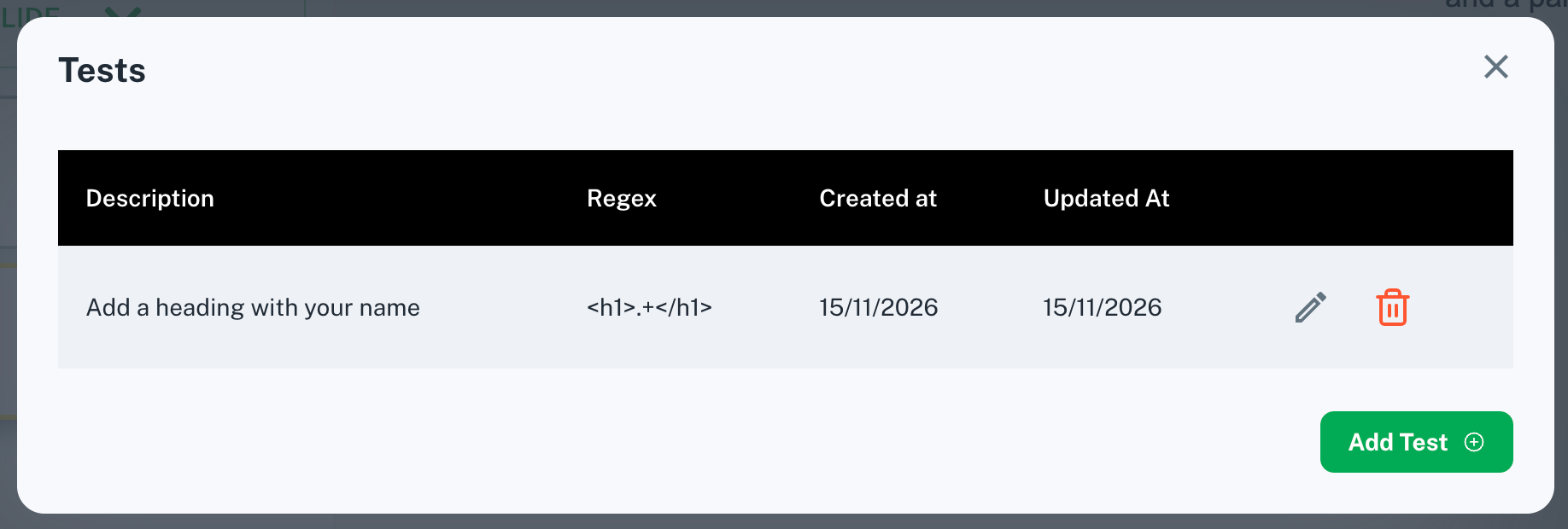
The test shows in the list. To change or delete a test, select the pencil or the bin on its row. In the editor, a slide with tests has a yellow border.
Check the test in the preview
- At the top right of the editor, select Preview, and go to the slide.
- Type code that should pass. In Code Tests, a green check shows next to each test that passes, and the slide's button changes to YOU DID IT.