Do a lesson in the code panel
Go through a lesson's slides, write the code each challenge asks for, pass its tests and move on.
Lessons open in the code panel, which has three parts:
- Instructions, on the left: the lesson's slides.
- Code Editor, in the middle: your code.
- Browser Preview, on the right: what your code makes.
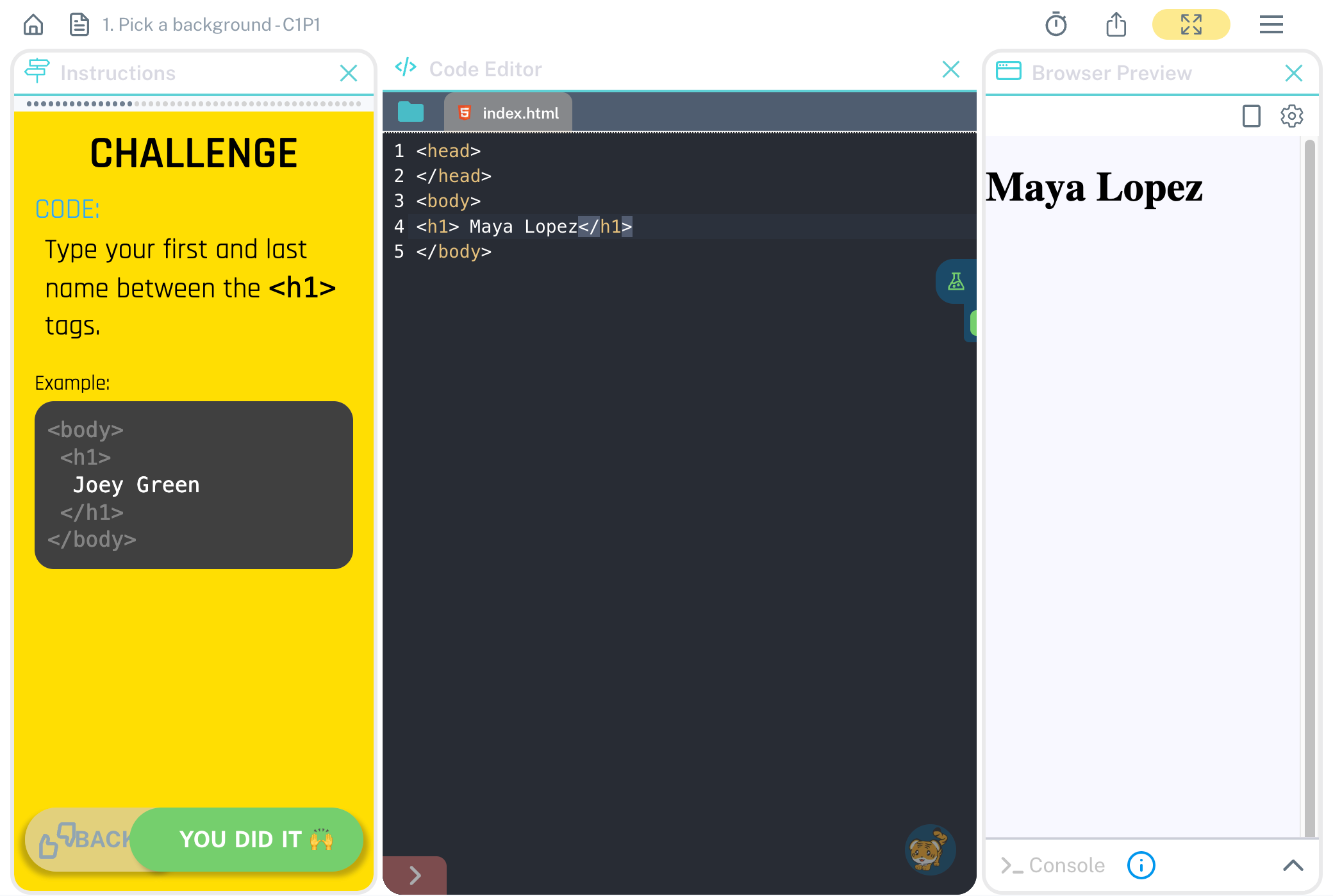
Go through the slides
Select NEXT to go to the next slide, and BACK to go back. The dots at the top of Instructions show where you are in the lesson.
Do a challenge
A yellow CHALLENGE slide tells you what to code, with an example.
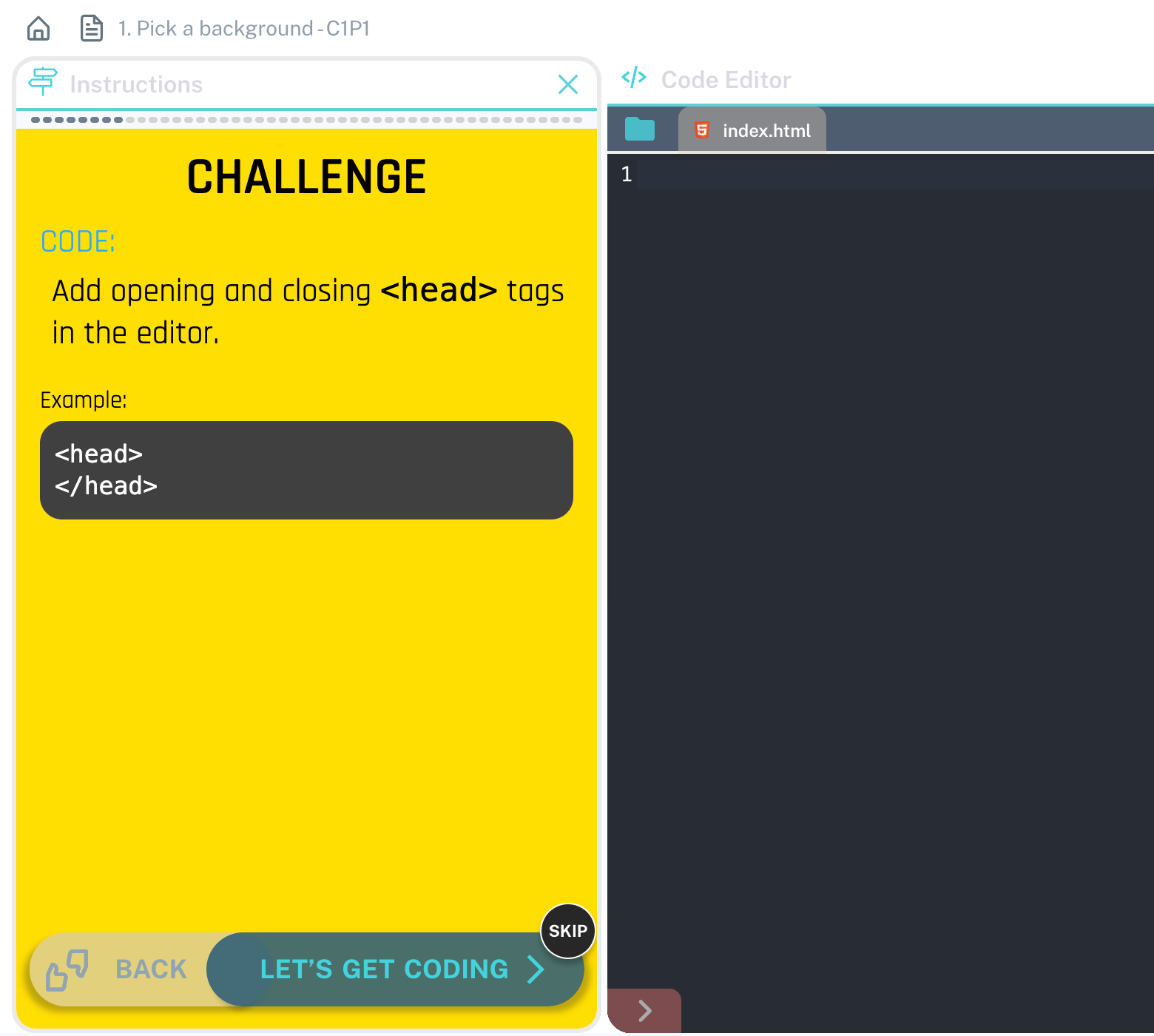
- Click in the editor and type the code the challenge asks for. The preview shows the result. If the preview has a Run button, select it to see your changes.
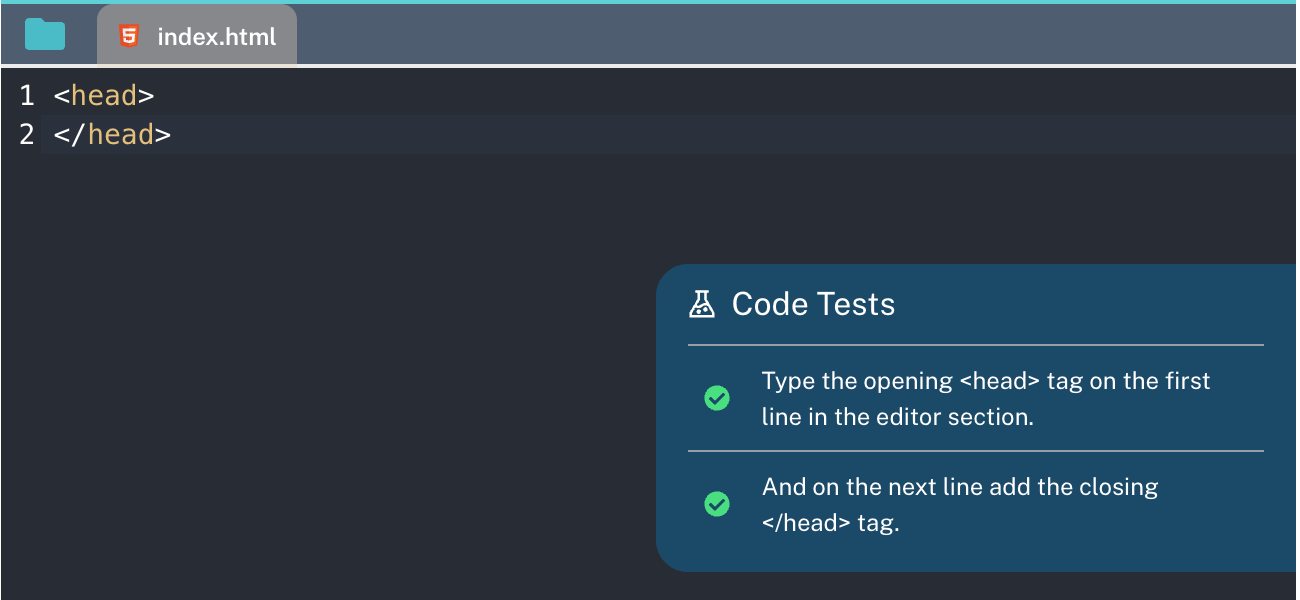
- CodeTribe checks your code as you type. To see its checks, select the flask icon at the right edge of the editor. Code Tests lists them, with a green tick on each one you've passed.
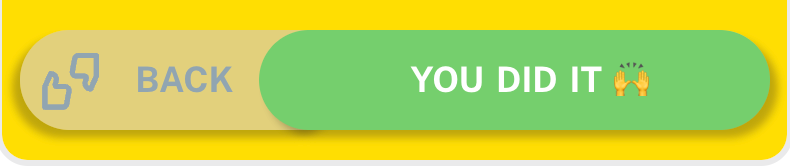
- When you've passed every test, the button under the slide says YOU DID IT. Select it to go on.
Until you've passed the tests, the button says LET'S GET CODING and doesn't move on. Some challenges have a SKIP button on it, for when you're stuck.
Finish the lesson
On the last slide, select NEXT. CodeTribe congratulates you and asks How was this lesson? Tap the stars, then pick what you liked and what you didn't, and add a comment if you want to. Select Next lesson to start the next one, or Stay here.
If CodeTribe Support replies to your feedback, you get an email and a note in your bell. Select OK to clear the note.