Invite students to your class
Share your class's invite link or join code, add students by email or from your school, approve requests to join, see who joined, and choose who can join.
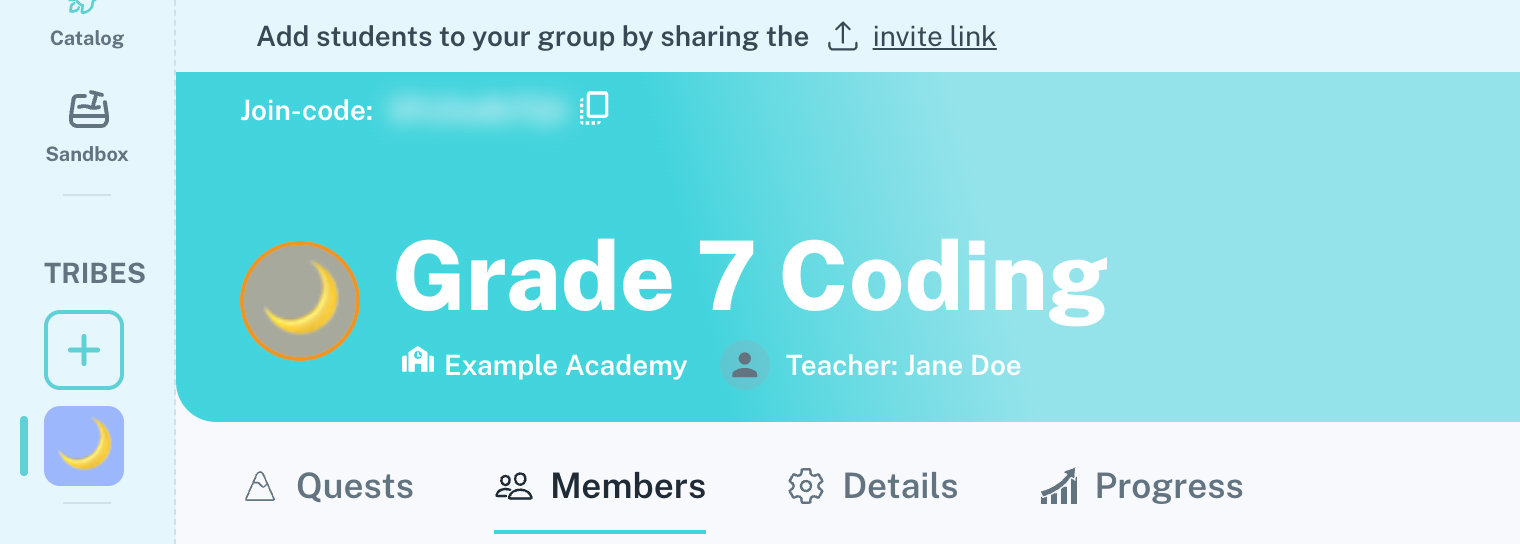
You invite students from your class's page. To open it, select your class in the sidebar, under TRIBES.
Share the invite link
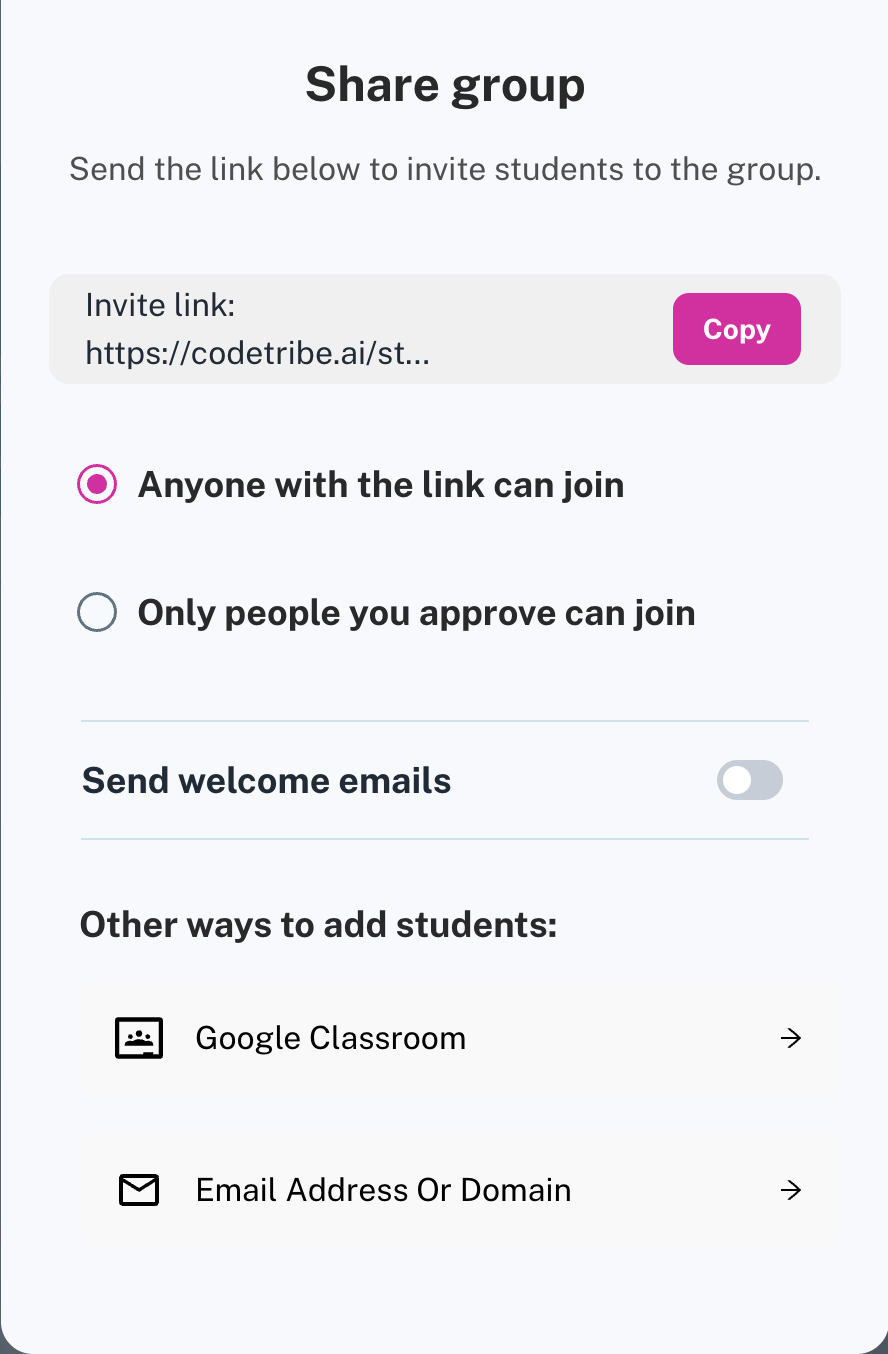
- On your class page, select Share, at the top right of the class banner.
- Select Copy, then send the link to your students, for example by email.
Students who open the link can join your class.
Give students the join code
- On your class page, find Join-code at the top left, and select the copy icon next to it.
- Give the code to your students. In the sidebar, under TRIBES, they select +, then Join a tribe, and type it there.
Add students by email
- On your class page, select Share, then Email Address Or Domain, under Other ways to add students:.
- Type the student's email, then select Confirm.
What happens next depends on the student's account:
- In your school: they join the class straight away, and their bell tells them. CodeTribe says Student added!
- In your organization, but not in your school: an invite waits in their bell, and they join when they select Join. CodeTribe says Invite sent.
- No account yet: CodeTribe makes their account in your school, adds them to the class and emails them a link to create their password. CodeTribe says Invite sent.
An account in another organization can't be added this way. CodeTribe shows an error.
Add students who already have an account
If your students already have accounts in your school, you can add them to the class yourself.
- On your class page, select ••• at the top right of the class banner, then Settings.
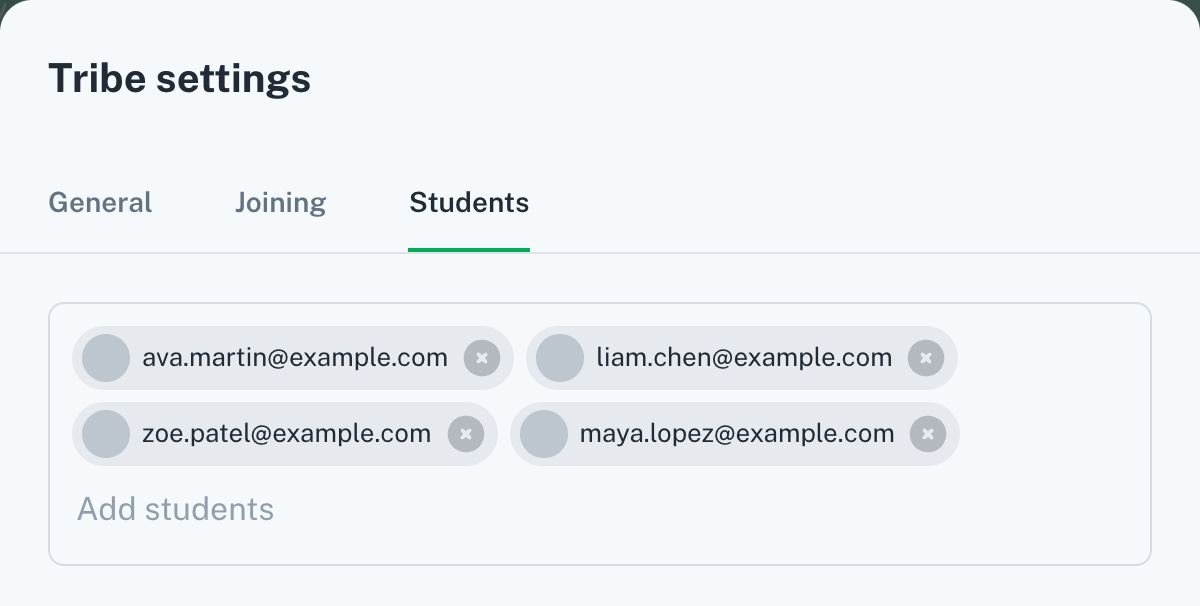
- Select the Students tab, then Add students.
- Select each student. Each one joins the class straight away.
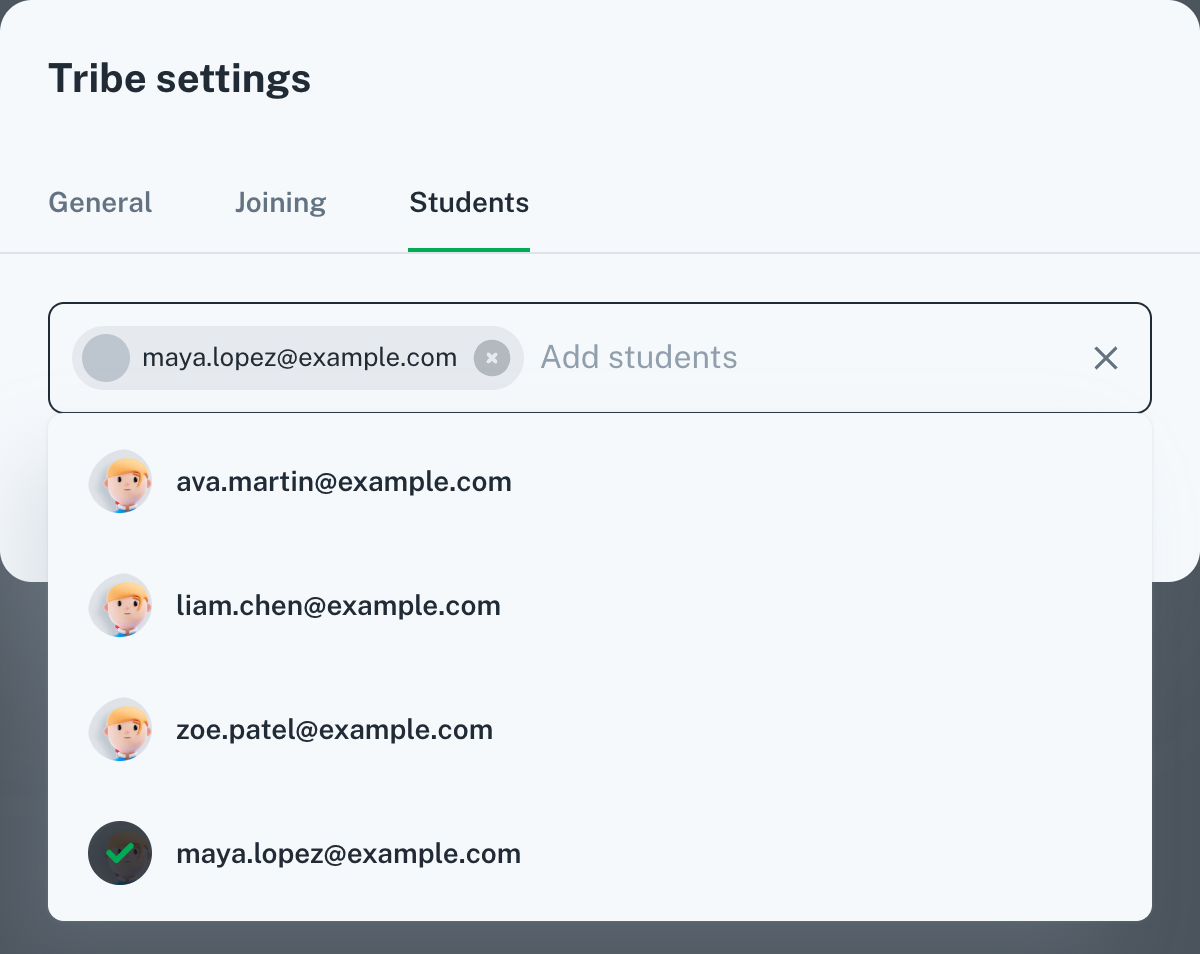
- Select Close.
Approve requests to join
If only people you approve can join your class, students who use your link or join code ask to join first. So do students a classmate invited.
Their requests wait in your bell, at the top right of the page, for the school picked at the top. Each one says who asked to join which class.
- Select Approve to let the student in, or Decline to say no.
- Select the request itself to open the class's Members tab.
See who joined
On your class page, select the Members tab. It lists everyone in the class.
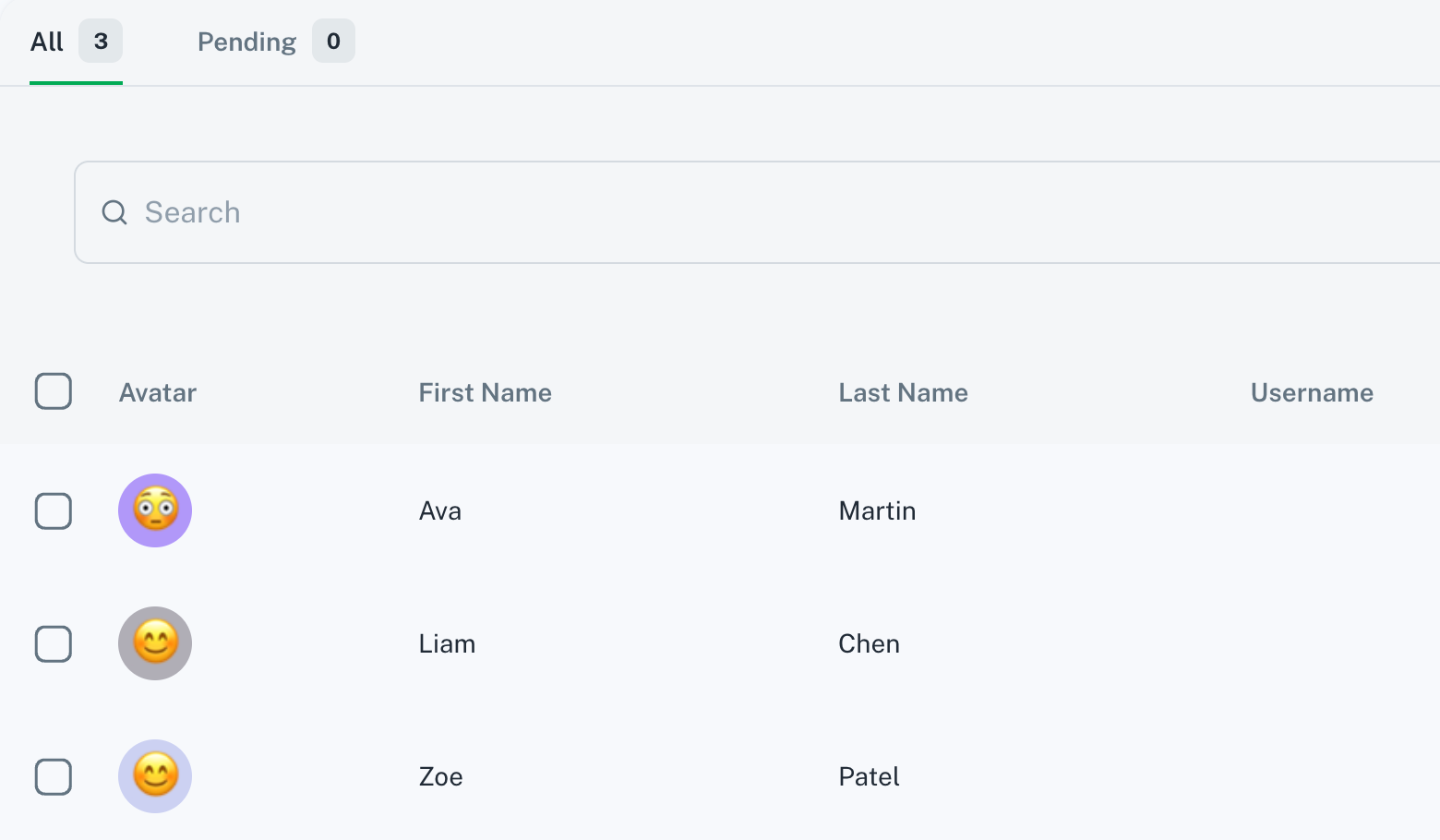
To take a student out of the class, select ⋮ at the end of their row, then Delete, and confirm. This only removes them from this class.
Choose who can join
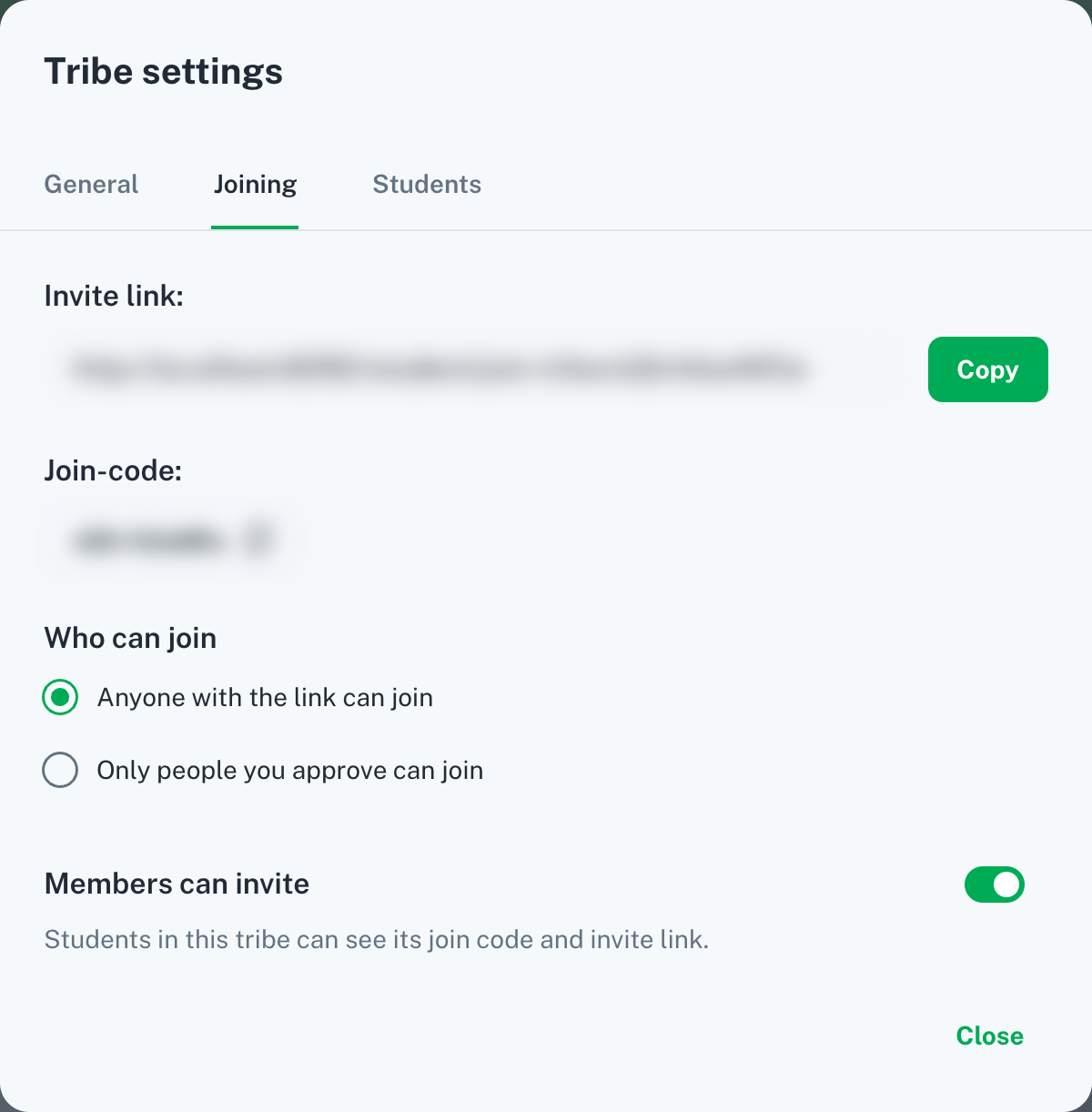
The Joining tab of your class's settings has the invite link and join code too, with two choices.
- On your class page, select ••• at the top right of the class banner, then Settings.
- Select the Joining tab.
- Under Who can join, pick Anyone with the link can join or Only people you approve can join. It's the same choice as in the Share box. With approval, requests wait in your bell: see Approve requests to join, above.
- Members can invite starts on: students in the class see its join code and invite link, so they can invite others. Turn it off if only you should share them.