Sign up as a teacher
Make your teacher account with Google or your email, add your school, and start your first class.
Teachers sign up on their own. You add your school as part of sign-up, and then CodeTribe helps you create your first class.
Start as a teacher
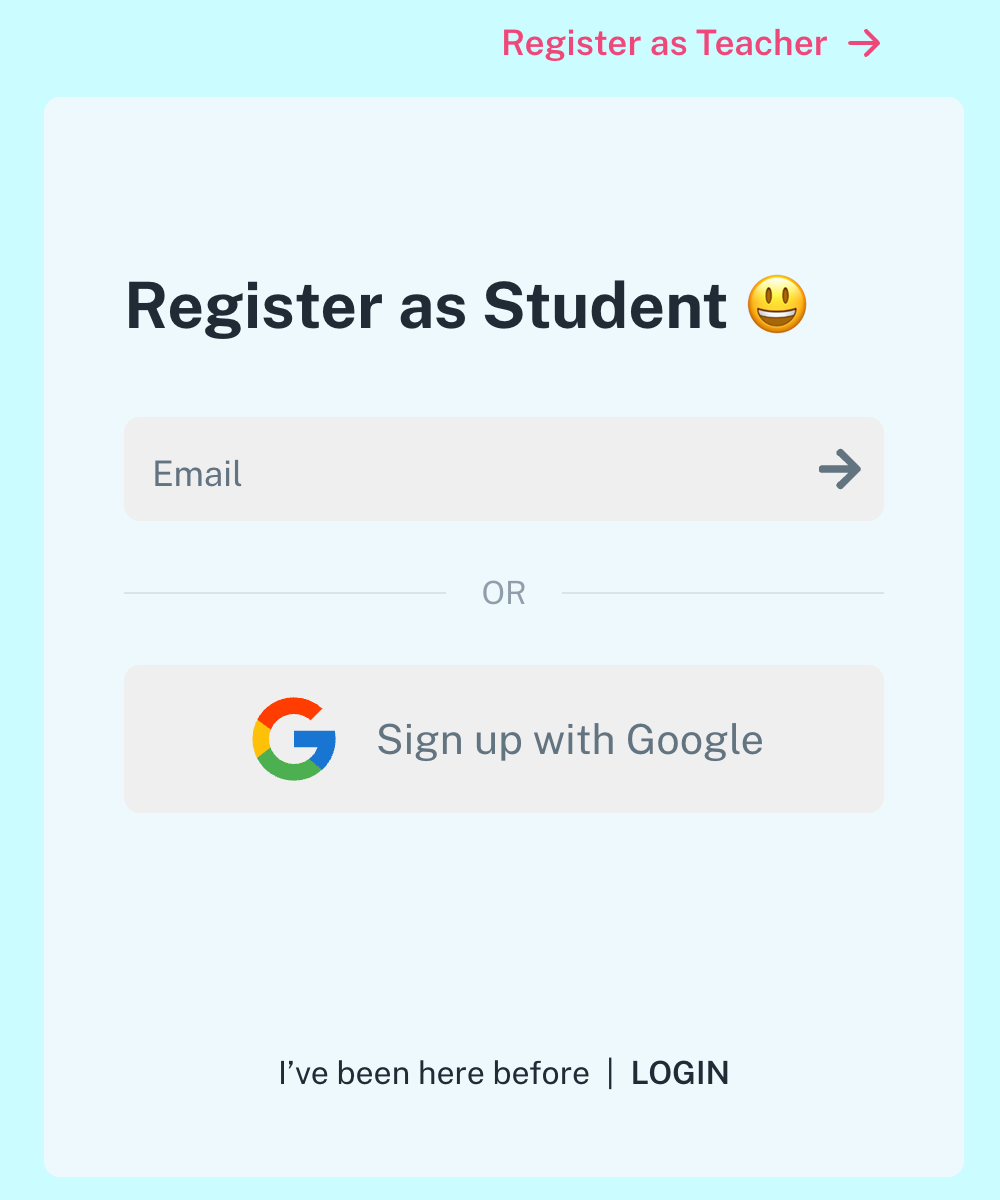
- Open codetribe.ai/auth/signIn. Next to This is my first time here, select REGISTER.
- At the top of Register as Student, select Register as Teacher.
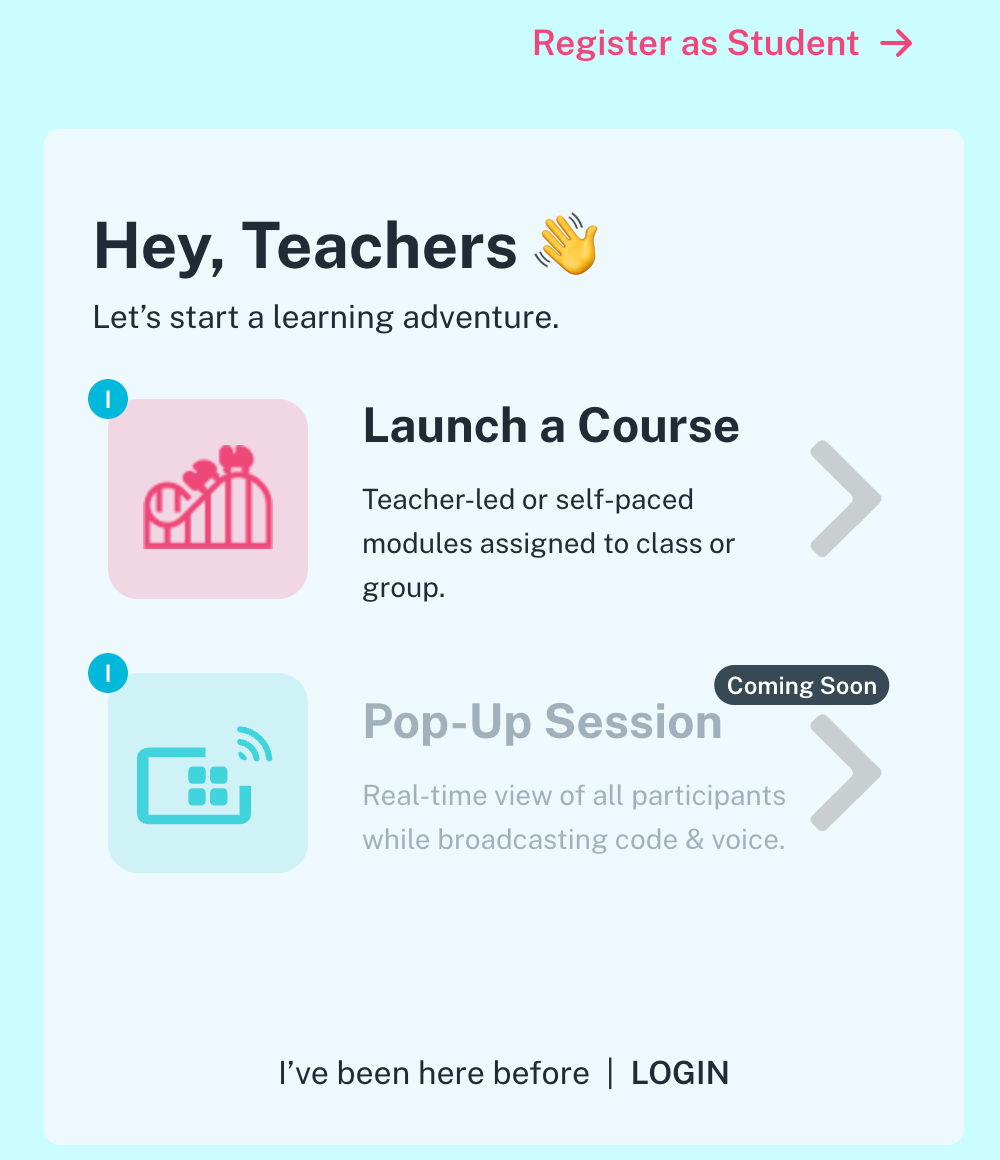
- On Hey, Teachers, select Launch a Course. Pop-Up Session isn't available yet.
Make your account
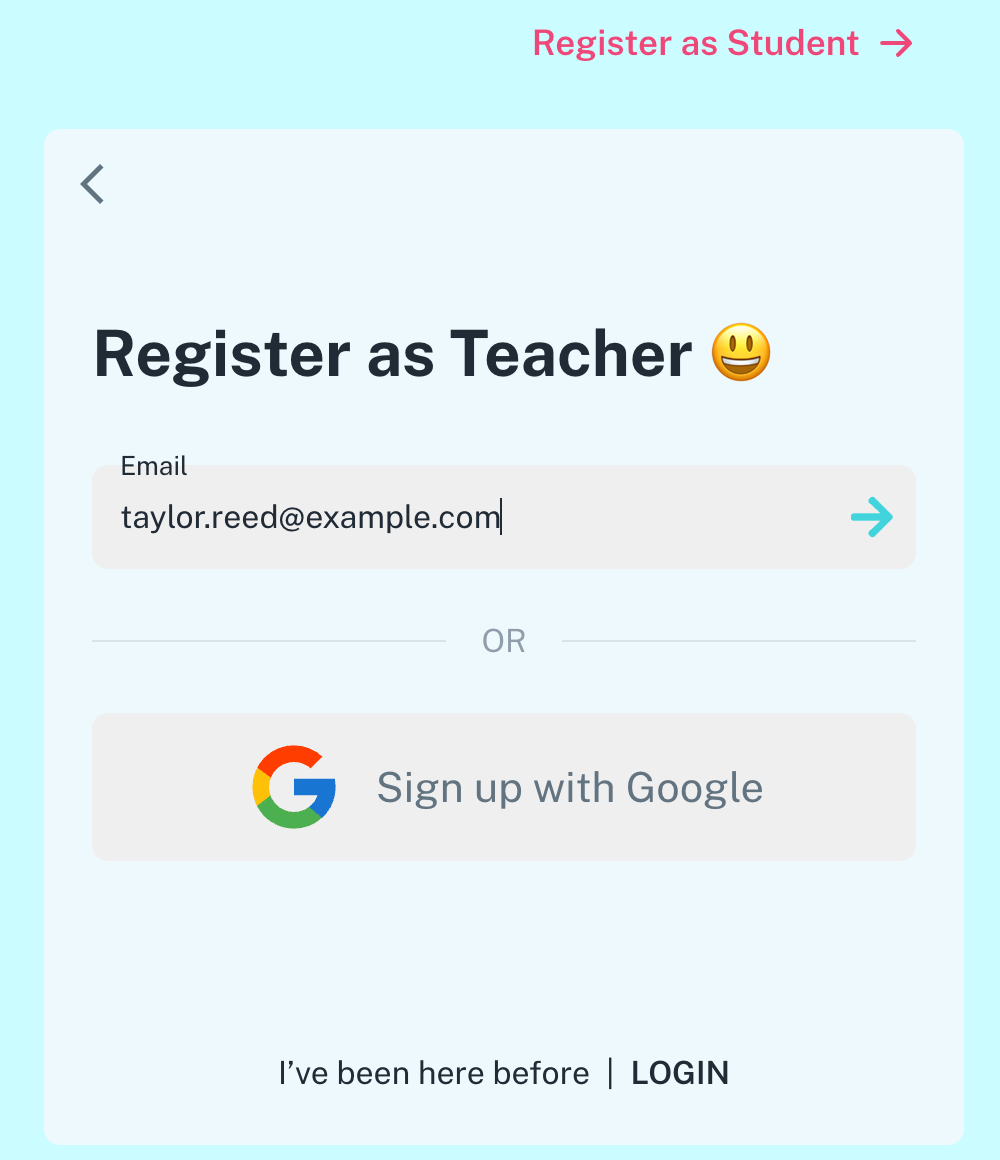
- On Register as Teacher, select Sign up with Google, or type your email in Email and select the arrow.
- If you used your email, type your First Name and Surname. In Password, choose a password of at least 8 characters.
- Select WHOOPIE. CodeTribe makes your account and signs you in.
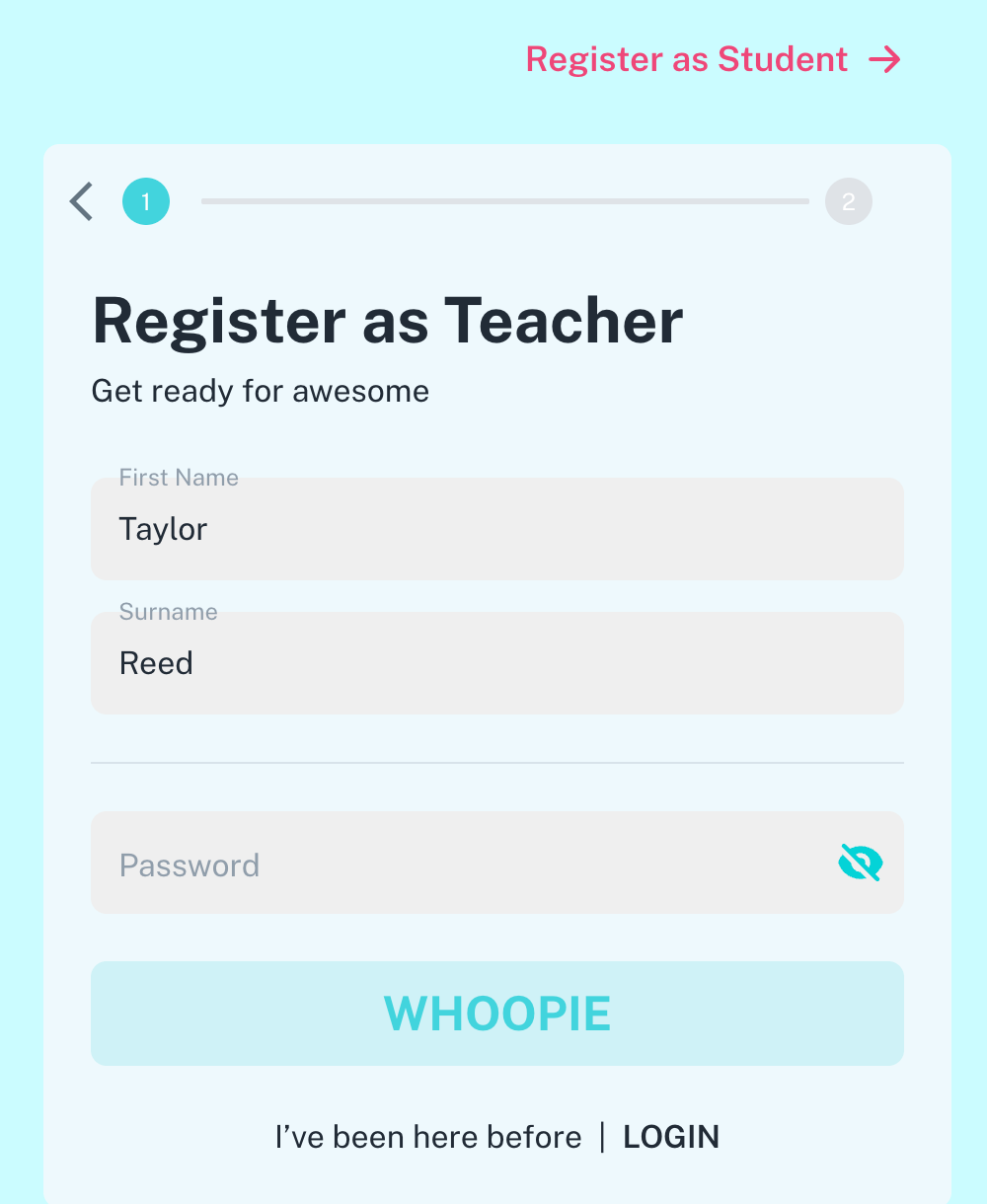
If you signed up with Google, CodeTribe skips this step.
Add your school
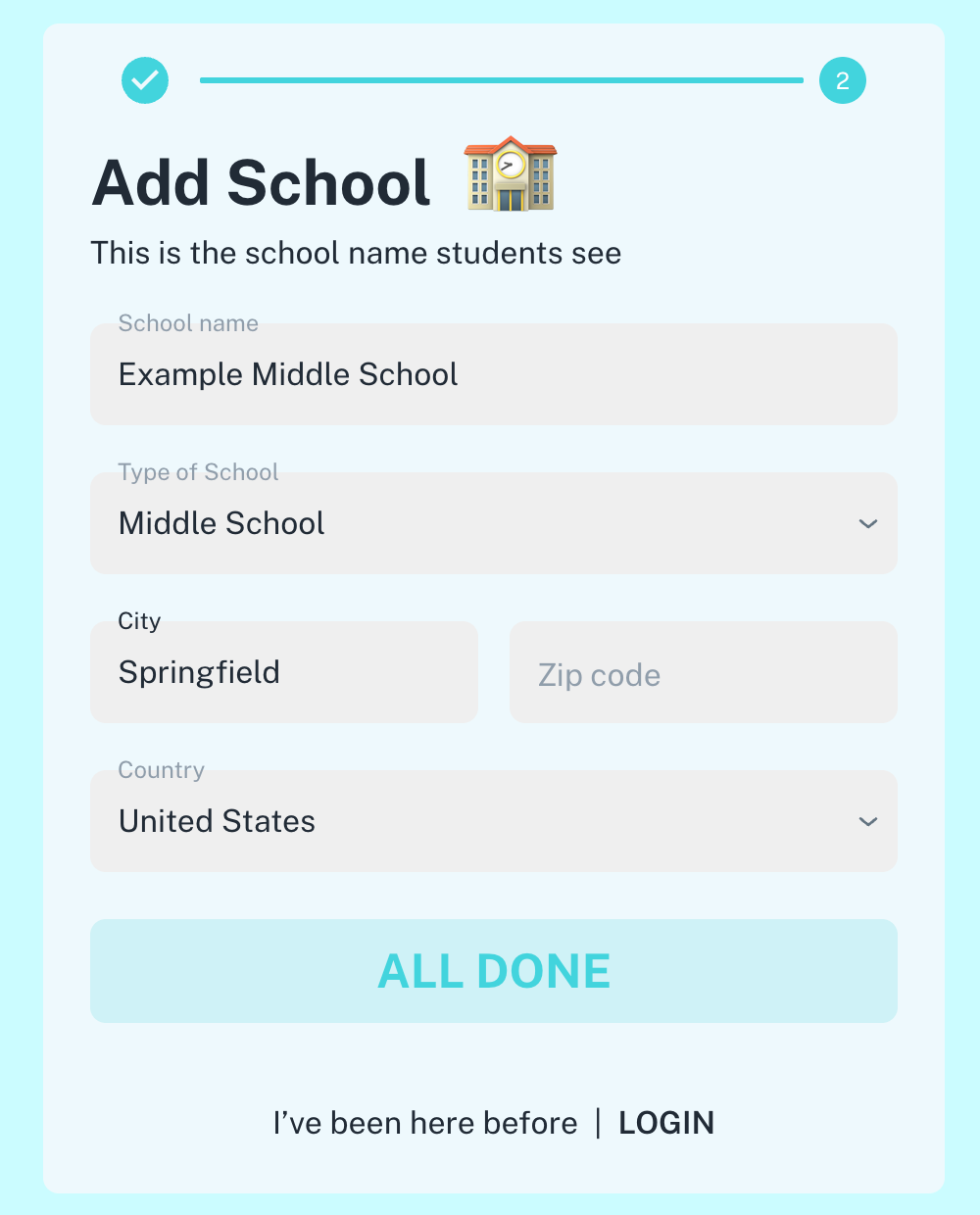
- On Add School, type your school's name in School name. CodeTribe fills in a made-up name to start with. Students see this name.
- Check Type of School, City and Country. Zip code is optional.
- Select ALL DONE.
Create your first class
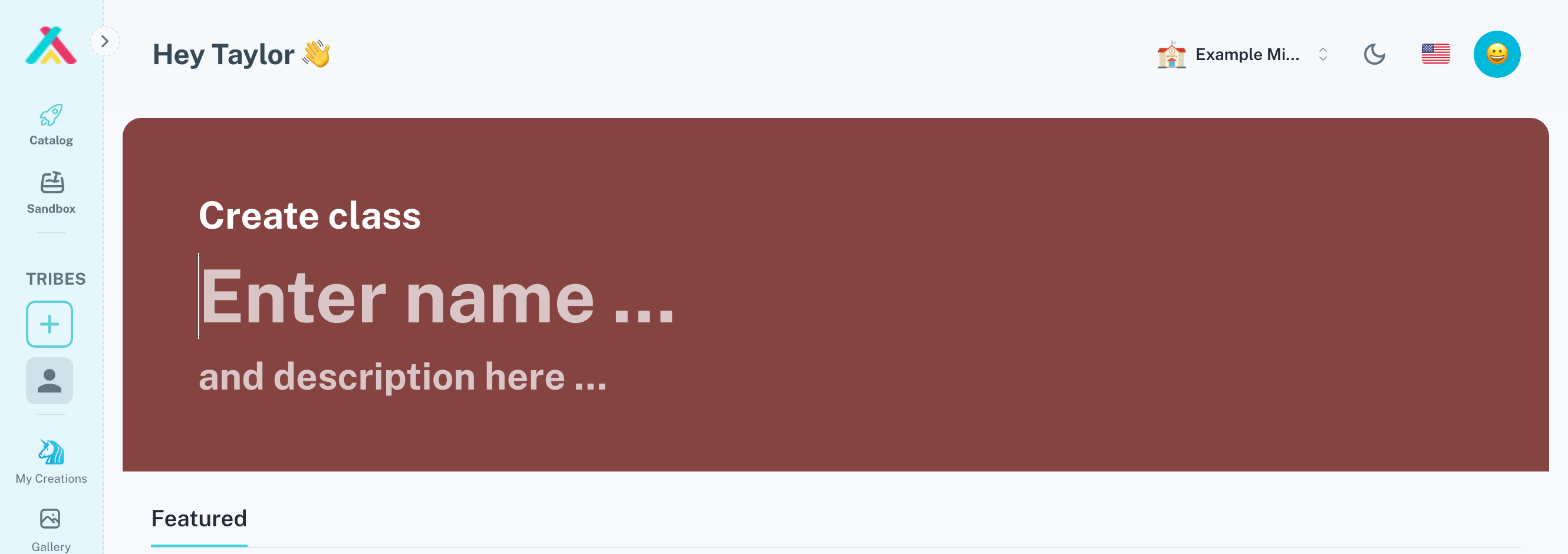
CodeTribe opens Create class next, with your school at the top of the page. To set up your class, see Create a class. CodeTribe then helps you give it its first Quest: see Find a course and assign it to a class.