---
title: Add tests to a coding slide
description: Give a slide a starting file and a test, so CodeTribe checks your students' code and lets them go on when it passes.
order: 2
verified: 2026-11-16
---
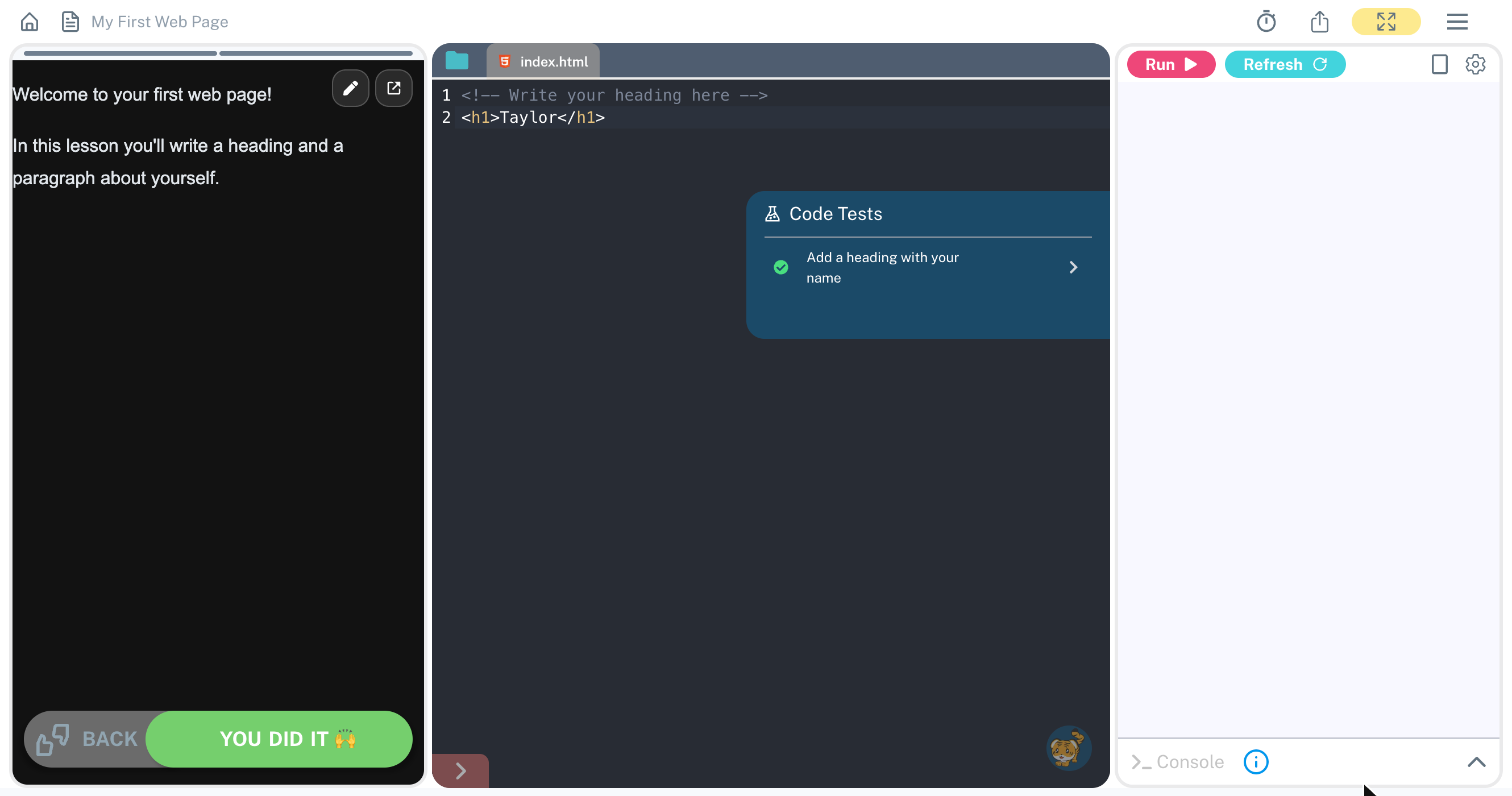
A test checks a student's code on one slide. Until the slide's tests pass, its button says **LET’S GET CODING**. When they pass, it changes to **YOU DID IT**. You add tests in the lesson editor: see [Create a lesson](/docs/creating-content/create-a-lesson) to open it.
## Give the slide a starting file
Students write their code in the slide's files. A new slide has none, so add one first.
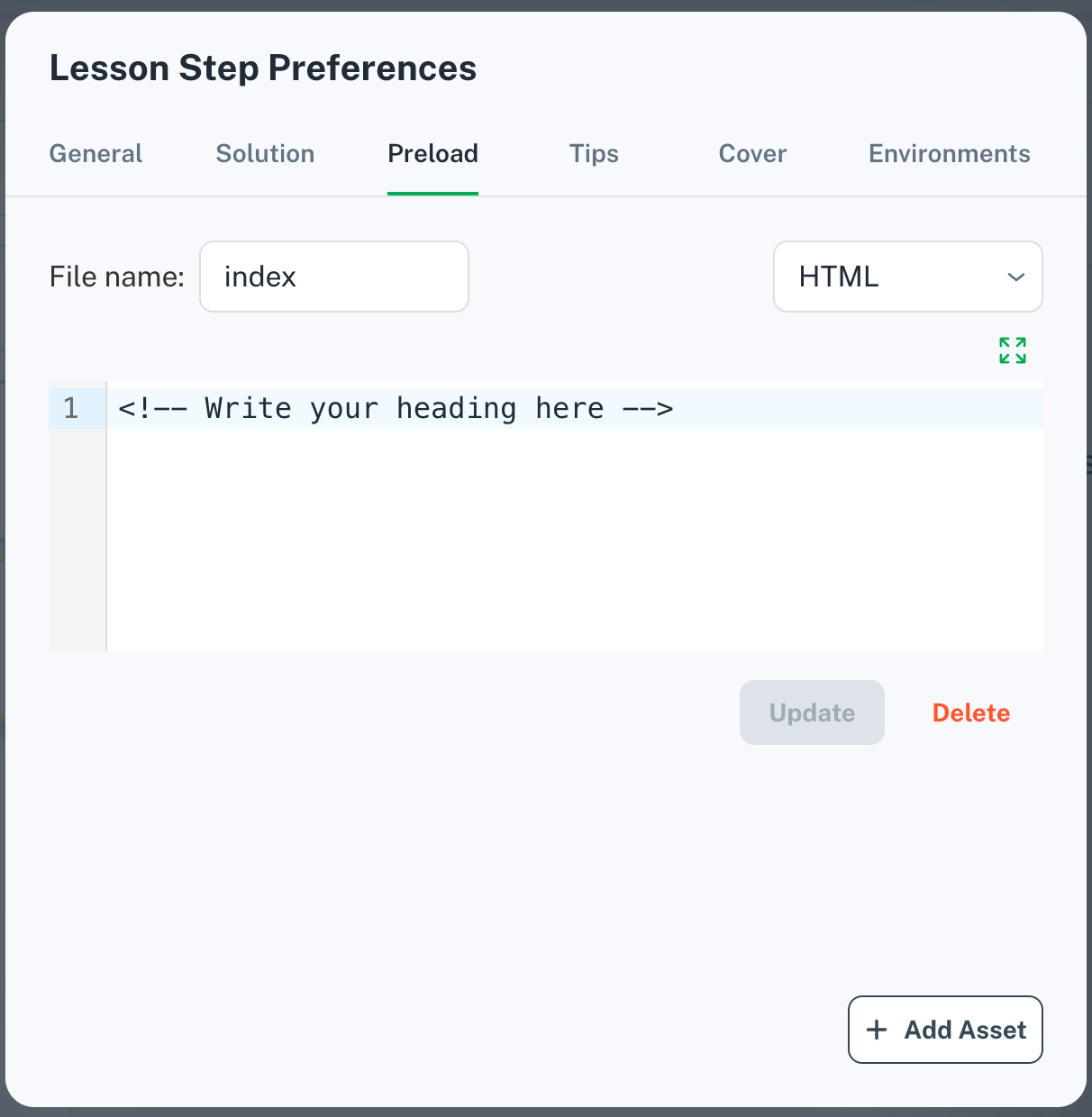
1. On the slide's card, select the ⚙ icon. **Lesson Step Preferences** opens.
2. Select the **Preload** tab, then **Add Asset**. CodeTribe adds an empty HTML file.
3. Check the **File name** and the file type. In the box below them, type the code students start with, such as a comment that tells them what to do.
4. Select **Update**.
## Write a test
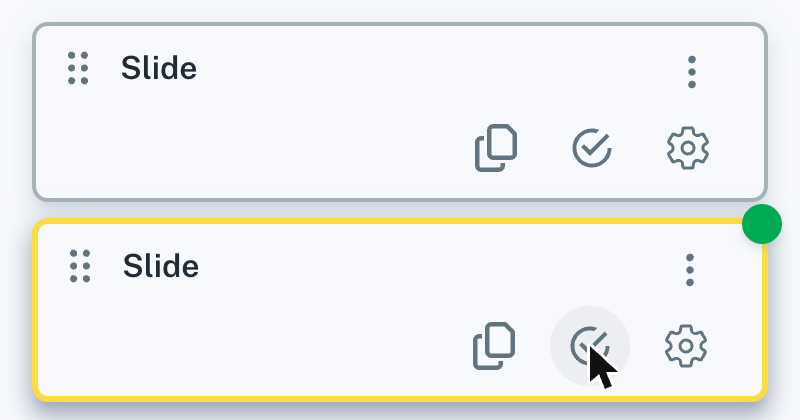
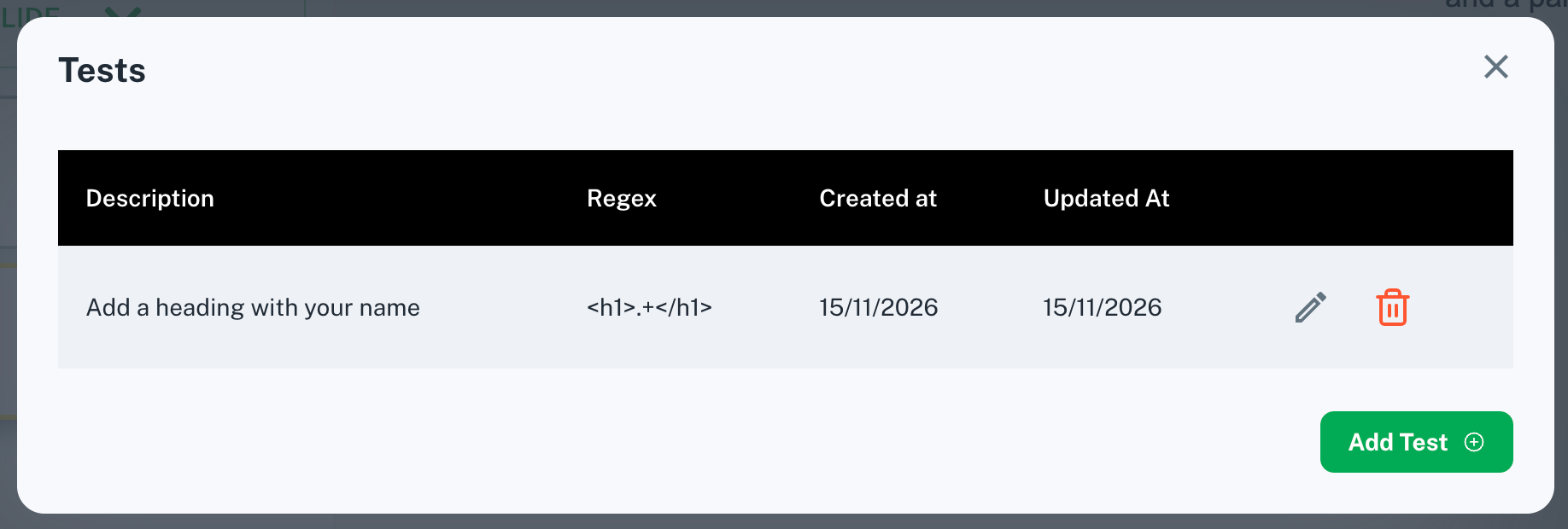
1. On the slide's card, select the ✓ icon. **Tests** opens.
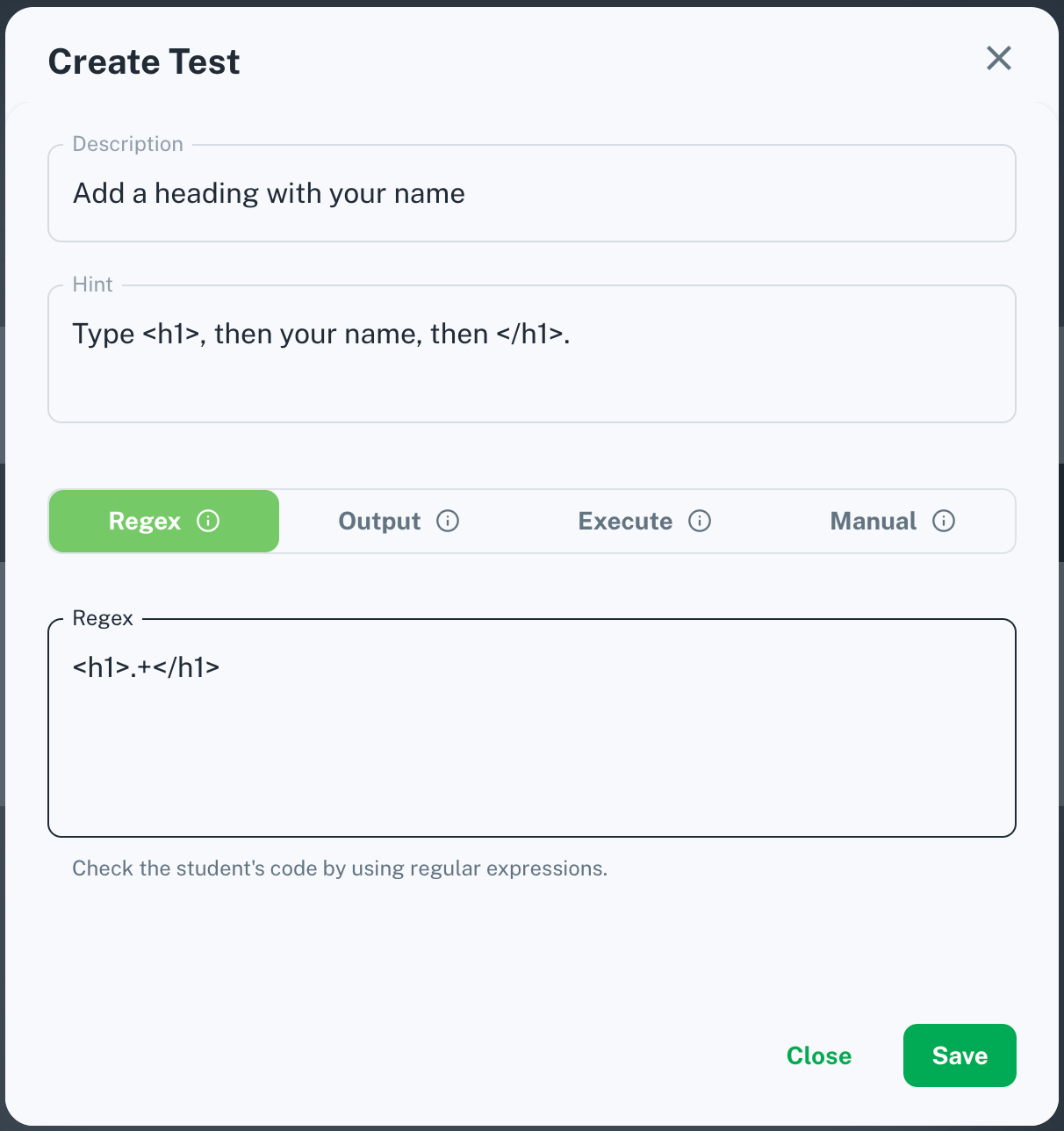
2. Select **Add Test**. **Create Test** opens.
3. In **Description**, write what the student has to do. Students see it in their **Code Tests** list.
4. Optionally, type a **Hint** for students who get stuck. They see it when they open the test in **Code Tests**.
5. Pick how CodeTribe checks the code:
- **Regex** looks for a pattern (a regular expression) in the student's code. For example, `.+
` passes when the code has a heading with some text in it.
- **Output** checks what the student's code prints when it runs. To match a pattern, put it between slashes, like `/Hello/`.
- **Execute** runs code you write together with the student's code.
- **Manual** is for internal checks, like running tests.
6. Type the check, such as the pattern for **Regex**, then select **Save**.
The test shows in the list. To change or delete a test, select the pencil or the bin on its row. In the editor, a slide with tests has a yellow border.
## Check the test in the preview
1. At the top right of the editor, select **Preview**, and go to the slide.
2. Type code that should pass. In **Code Tests**, a green check shows next to each test that passes, and the slide's button changes to **YOU DID IT**.